Offline seed of Exchange 2010 DB in DAG environment
Posted by Sam in DAG, Exchange 2010, Poweshell on 27 February, 2013
 Adding a member server to the DAG is an easy and worthy process, as it could provide protection against server failures and for remote sites it could save on bandwidth in regard to RPC (Outlook client) traffic to mail server.
In our situation, we have a stretched cluster which extends the DAG over a microwave link. copying a database over that link could take days, or weeks especially if we are talking about several databases with over 300 GB in size. This article will take you over offline seeding, this process proved successful in our case and very effective, but in order to get a successful result each of the steps outlined below have to be covered in that order.
Steps to offline seed Exchange 2010 DB
1. Before you even start, you should stop backing up the databases. Backups could truncate your logs files and cause the database to fail at the other end if any of the logs are missing.
2. Using DISKSHADOW.EXE tool, this tool is part of Windows 2008/2008 R2. With this tool we will be able to create a read only copy of the database volume before copying it to an external or network media.
3. At the command prompt, type DISKSHADOW.EXE
4. You can query available disk shadows by running: list shadows all
5. Set the snapshot as crash consistent type : Set Context Persistent
6. Add your volume ready for a snapshot (in our case the K drive): add volume K: alias kdrive
8. To create the VSS snapshot type: create
9. To expose the snapshot as a read only, type: expose %kdrive% Z:
10. Now at that point you should be able to see a Z drive available, it will give you a read only access which allows you to copy the content to a USB drive or directly to the target if the bandwidth permits. In our case we shipped it on a USB drive to our other remote site where we loaded it onto a temp drive on the target Exchange server. After copying the database, you can remove the volume and snapshot by running the following command using the Diskshadow.exe utility:
unexpose Z:
delete shadows volume K:
11. At this point we can create another database copy by running this Exchange PS command: (Make sure to use the -seedingpostponed key)
Add-MailboxDatabaseCopy -Identity DatabaseName -MailboxServer TargetExchangeServerName –SeedingPostponed
12. Place the database .db file in its corresponding directory
13. Then run PS: Resume-MailboxDatabaseCopy “DatabaseName\TargetExchangeServerName“
Now Exchange would validate the database and copy the required and missing log files form the source Exchange server.
Dynamic Distribution Group – Excluding Security Group

It has been a while since I have posted anything on my blog, due to change of responsibilities and the new job. Now I am mainly focused on VMware and Exchange.
Most people know that Dynamic Distribution Groups are great in offering flexible and automatic management of user membership in addition to all the features offered by normal distribution groups. By the way, I won’t be detailing how to use Set-DynamicDistributionGroup cmdlet in setting a dynamic group up (please refer to powershell help by typing help Set-DynamicDistributionGroup -Examples to see some examples of how to use -RecipientFilter property).
If you image that you have all your users in one OU (which is possible) , Dynamic Distribution Group look at a specific recipient container. In some cases you want to exclude a single user from the list, now that is easy, make sure (-not(Name -like ‘name‘) is entered into your recipient filter.
Excluding one name is easy, but you don’t want to keep adding a name at a time. You could bind all of your members who you want to exclude from your dynamic group in a security group and add this line to your recipient filter (-not(MemberofGroup -eq ‘Security_Group_FQDN‘)).
Whoever is added to that Security group won’t be a member of the dynamic distribution group.
To get members of a dynamic distribution group
$group = get-DynamicDistributionGroup “Group_Name“
$members = get-recipient -RecipientPreviewFilter $group.RecipientFilter
The resource “datastore_name” is in use while attempting to delete that data store
This weird behavior was observed on two data stores which we were planning to delete/unmounted from all our ESX/ESXi hosts.
The first error flagged “Can’t remove datastore ‘datastore_name‘ because Storage I/O Control is enabled on it. Correct it and re-try the operation”. So we tried disabling SIOC through vSphere client, the process never completed and got stuck at 4 – 14 %. This process didn’t flag any errors, but I had to increase the SIOC log to the maximum in order to find where the issue is.
To enable Storage I/O log, on each host > configuration > Advanced Settings, change Misc.SIOControlLogLevel to 7 and restart the SIOC on the host by using the following command through a SSH session
:
[For ESXi] /etc/init.d/storageRM restart
[For ESX] /etc/init.d/vmware-late restart
Error and warning messages can be traced in /var/log/messages

It became apparent that the SIOC wasn’t running on one of the hosts which caused the whole process of deleting a data store to fail.
Practical Powershell
Posted by Sam in Compellent, Poweshell, VMWare on 9 July, 2012
I have been trying to link the information I get from VMware vSphere and the Compellent SAN to be able to trace VM activity within the storage layer end. I found a good post on the above link which gives a good link between the two systems using Powershell.
VMware Snapshot Tracking
Like many of you, I am frustrated with the information I get while a snapshot or several snapshots are being deleted. If you use the GUI to monitor this process then you won’t have much luck trying to determine at what stage the snapshot deletion process is at, the task would stick at 99% for minutes and maybe hours depending on the number of snapshots and their sizes.
There is no way to estimate time left, the only option is to SSH to the ESX or ESXi host, browse to the datastore where that specific machine files do reside. And run the following command
# ls –lhut
This should display files in the following format:
-rw——- 1 root root 40.0G Sep 6 08:27 ServerName-000001-delta.vmdk
This would arrange files according to their access time, starting from most recent. This method should give an indication of which .vmdk file the deletion process is active on. Each snapshot file has 6 digit number attached to it to indicate its position within the snapshot chain (e.g. ServerName-000001-delta.vmdk, ServerName-000002-delta.vmdk, ServerName-000003-delta.vmdk, etc). the deletion process goes through each file in sequence starting with ServerName-000001-delta.vmdk.
Host cannot download files from VMware vCenter Update Manager patch store
 After upgrading our vCentre server to the latest patch (vCentre 4.1.0-345042), our Update Manager failed to update or even attempt to scan any of our hosts with the error “Host cannot download files from VMware vCenter Update Manager patch store. Check the network connectivity and firewall setup, and check esxupdate logs for details.”
I have searched on the web for the solution to this error and people were mentioning double checking DNS entries on each of the hosts, but that never changed in my case.
I went back to our vCentre server and checked each vCentre server component version installed and it turned out that VUM wasn’t running the latest version. After upgrading and rebooting the machine, ESX host and VM scan and updates were working back again.
Want to become an ESXi expert? here is how…
 VMWare has released a three hour training video plus a free ebook to take you through the new features of ESXi 4.1, it’s worth looking at for VMware and system administrators.
I hope you find this training useful.
Patch scan or remediation is not supported on “ServerName” because of unsupported or unknown OS
Coming from a WSUS era, VUM has provided flexibility and good patch/remediation management for virtual machines until you start seeing this error message “Patch scan or remediation is not supported on ServerName because of unsupported or unknown OS”, this has hit me hard especially moving forward to x64 versions of Windows 2008 R2 and Windows 7.
Vmware has released vSphere compatibility matrix found here. I have taken a snippet of this document shown below:
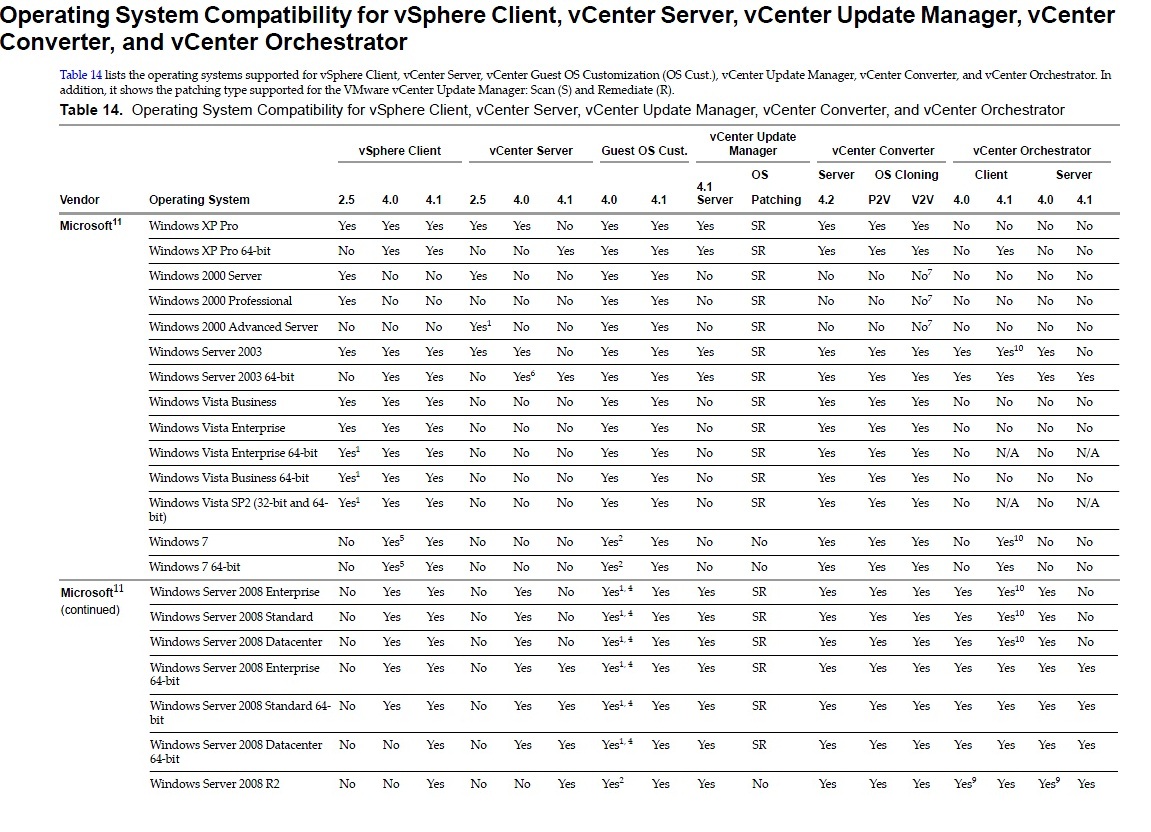
“Update Manager 4.1 and its subsequent update releases are the last releases of the product to support scanning and remediation of patches for Windows and Linux guest operating systems and applications running inside a virtual machine.” Supported document is found here. Make sure you rethink your patching management and deployment strategies for VM environment, I guess WSUS is still the way to go within Windows environment or purchasing MS System Centre Configuration Manager which makes software updates (not just windows updates) much easier with better control with other capabilities on top.
Vmware Snapshots and VM Performance
 I am sure you have read or come across VMware best practices regarding snapshots. We use vDR in some of our backups in addition to Backup Exec to backup specific applications such as SQL and Exchange.
As a note, VMware snapshots are crash consistent and not application consistent. For that reason VMware do not recommend using snapshots on DC servers. To have an application consistent backup, Backup Exec and other third party backup application can do that for you.
Now back to our issue, running on multiple snapshots is bad. It is even worse when having multiple snapshots on one machine older than 3 days. Your machine would struggle reading from these multiple delta vmdk disks to recreate your data. These snapshots can get very large and can degrade the performance of the server immensely! We had this issue with an Exchange server that had 7 snapshots over 3 days old at various sizes, the server became unusable. The time it took to delete those snapshots were close to 10 hours and that wasn’t fun!
To avoid this crisis, setup alarms on your VCentre to cascade to all nodes in your cluster to alerts you for any VM running on snapshots.
There is a great KB article by VMware.
Extending RDM and VMFS LUN’s
You will find that mapped RDM datastores in virtual compatibility mode cannot be extended simply by a re-scan of the HBA and extending the drive. In this case you will need to shut down the server, make note of the scsi x:y postion, un-map that volume from the virtual machine and re-map it again. This would recreate the descriptor file with the added space.
A simple rescan within your VM OS would show the added space which you can extended using DISKPART or any other tool out there.
RDM’s in physcial compatibility mode can be extended easily without the above steps.
 Sam Khanjar
